If you need to download a few Shopify product photos, saving them one at a time can work. If you need a collection, a seasonal catalog, or every product image in a store, that same process quickly turns into hours of clicking and cleanup.
The right export method depends on what you need after the download. A spreadsheet of image URLs may be enough for data work. A designer, marketplace team, or offline archive usually needs the actual image files, useful names, and a reliable way to trace each file back to its product.
This guide compares four ways to export Shopify product images. Choose based on whether the next step needs image URLs, a few files, or a complete package that keeps files connected to products.
Already know you need a full download? Go straight to the whole-catalog download checklist. For a narrower job, follow the guides for collections, SKU-based filenames, or migration preparation.
Quick answer: how do you bulk download Shopify product images?
Shopify's native product export creates a CSV containing product data and image URLs. It does not package the image files into a downloadable ZIP. To keep actual image files locally, you can download them manually, use a browser-based downloader, write a script, or use a Shopify image export app.
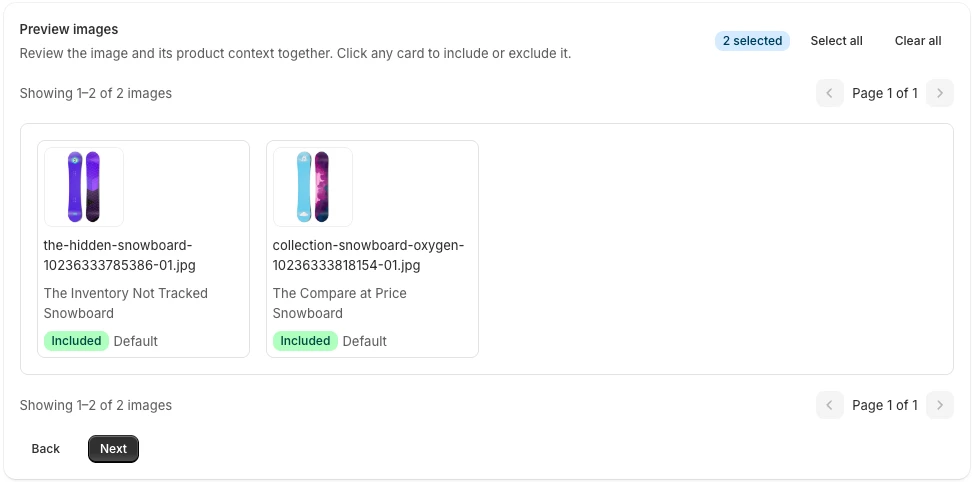
For a product-aware ZIP workflow, PlainKits Image Export packages files with a manifest. The whole-catalog guide covers selection and completeness checks.
Choose in one minute: Use Shopify's CSV for product records and image links. Save a few photos manually when you only need a handful. Use an image export app when someone needs many actual files with names, folders, and product mapping. Check what a browser downloader captured before relying on it for a full catalog.
What Shopify's native product CSV includes
Shopify lets merchants export products to a CSV file from the Products page. The CSV is useful for moving or editing catalog data, and its image fields contain URLs that Shopify can use during product import.
That is different from downloading the underlying image files. If the next person needs JPEG, PNG, WebP, GIF, or AVIF files on their device, someone still has to retrieve the images from those URLs and organize them.
Shopify also warns that changing the sort order of a product CSV can separate variants or image URLs from the products they belong to. Preserve the row relationships whenever you use the CSV for a later import. See Shopify's official guides to exporting products and using product CSV files.
Four ways to export Shopify product photos
| Method | Actual image files | Bulk download | Product context | Automatic naming | Best for |
|---|---|---|---|---|---|
| Shopify product CSV | No—image URLs | Yes | Product rows | No | Catalog data and imports |
| Manual save | Yes | No | You maintain it | No | A handful of images |
| Browser downloader | Usually | Sometimes | Usually limited | Usually limited | Public-page assets |
| Shopify image export app | Yes | Yes | App-dependent | App-dependent | Catalog-scale handoffs |
1. Export a Shopify product CSV
Use the native CSV when the URLs themselves are useful, when you are editing product records, or when your destination accepts Shopify's CSV structure. It is the safest place to start for catalog data, but it is not an organized local image library.
2. Save images manually
Manual download saves the file served at the URL you open; on a storefront, that can be a resized version, but it does not scale. Duplicate source names such as image.jpg create collisions, and the relationship between a file and its product is easy to lose after several downloads.
Manual saving is reasonable for two or three images. For dozens or thousands of files, calculate the time for downloading, renaming, creating folders, checking omissions, and explaining the result to the next person—not only the time spent clicking Save.
3. Use a browser image downloader
A browser extension may collect images visible on a page. This can be convenient for a public product page, but it may also collect theme assets, thumbnails, icons, and resized storefront versions. The extension may not know the Shopify product ID, variant, SKU, collection, or original image position.
Check the extension's privacy policy and permissions before giving it access to merchant or admin pages.
4. Use a Shopify image export app
An export app can work with product records rather than only the visible page. The useful differences are whether it can filter the catalog, preview the exact selection, preserve original-quality files, control names and folders, and produce a machine-readable index.
PlainKits focuses on creating an organized, traceable handoff package. It does not modify the source images in Shopify.
Which method should you choose?
Use Shopify's product CSV when you need catalog fields or image URLs for an import. Save manually when the request contains only a few files. Use a browser downloader when public-page images are sufficient and product metadata is unimportant.
Use a dedicated export workflow when the recipient needs actual files at catalog scale, the selection must be reproducible, or each image needs to remain connected to its product and SKU.
Follow the workflow that matches your job
Once you know which method fits, use the checklist for the job in front of you:
- Download everything: Export the whole product image library, then reconcile the files against the selected products.
- Work with a smaller selection: Download by collection or use SKU-based filenames.
- Work from a spreadsheet: Understand Shopify product image CSVs, including why an image manifest is not a product-import template.
- Keep a copy or move stores: Follow the image backup checklist or migration preparation guide.
- Hand files to someone else: Set a file-naming convention, organize images by SKU, and prepare a designer handoff.
- Need PDFs, logos, or other uploads? Start with Shopify Files; those assets are outside a product-photo export.
For a guided product-image ZIP, see what PlainKits Image Export includes before installing. Its manifest.csv guide explains how to check which downloaded file belongs to which product. It exports and organizes images; it does not replace the destination's import tools.
Before you hand off the export
- Confirm that the ZIP contains the expected number of successful images.
- Keep
manifest.csvbeside the image files. - Do not rename files after export without updating the manifest.
- Tell the recipient whether the files are originals or edited derivatives.
- For marketplace or social use, verify the destination's current size, crop, background, and format requirements separately.
- Keep a local copy if the package is part of a backup or migration project.
PlainKits organizes and exports product images; it does not resize images, validate marketplace rules, publish to another channel, or perform a complete store migration.