Quick answer: how do you download images from one collection?
Choose the collection in Shopify Admin or in PlainKits Image Export, then select product images and preview the matching products before creating the ZIP. Leave unrelated filters off if you need every product in that collection. A collection cover image is a separate asset from the product galleries.
A collection changes which products you select, not the kind of files you need. If you are still deciding how to retrieve them, compare the available image export methods.
“Can you send the photos for the autumn collection?” should not require sending your entire catalog. A collection gives you a useful starting selection, but a few details can change what ends up in the download.
The main distinction is between the collection's cover image and the product photos belonging to products inside it. They are different assets. Most campaign handoffs need the product photos.
Select the collection's product images
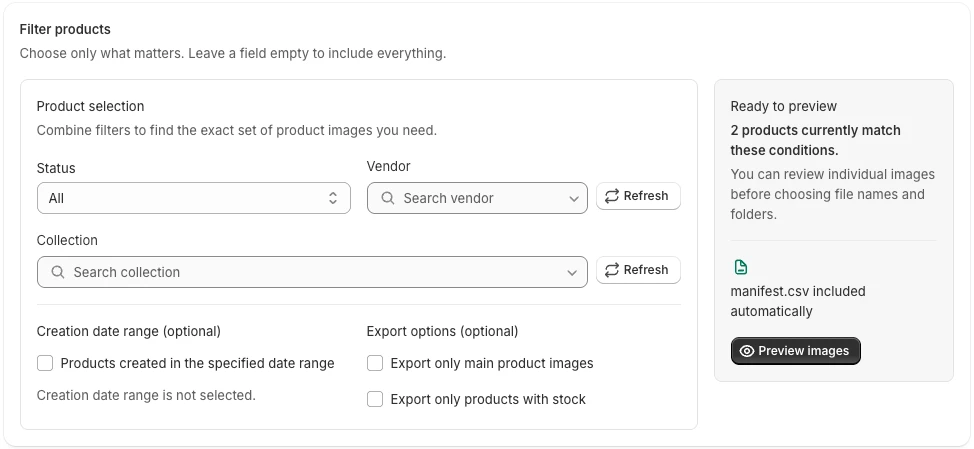
In PlainKits Image Export, start from a collection in Shopify Admin or choose a collection in the app's product filters. Use the product-image workflow for the products in that collection. The separate collection-cover scope exports the cover, not the galleries.
- Select the collection you need.
- Review any other active filters. Status, inventory, vendor, and creation-date conditions narrow the collection further.
- Turn off main-image-only if the recipient needs detail shots as well as hero photos.
- Preview the matched images and exclude anything outside the brief.
- Choose a folder and filename scheme, create the ZIP, and download it when complete.
For example, a seasonal collection may include a sold-out item that the designer still needs in a lookbook. An in-stock-only filter would remove it. Match the filters to the handoff, not automatically to what is available to buy today.
Choose folders for the recipient
Product folders are a good default when each product has several angles. Someone can browse a product's photos without reading a spreadsheet first.
A flat archive works when the recipient is importing everything into another system, provided filenames remain distinguishable. See the file naming guide before choosing a SKU-based pattern for products with incomplete variant data.
Collection folders need more care. A product can belong to several collections. PlainKits uses the first collection name in the returned product data for collection-based folder naming; that name is not necessarily the collection you selected as a filter. The manifest lists the returned collection names. For a handoff named after one campaign, use product folders and put the extracted archive inside a clearly named campaign folder.
Check changing collection membership
A collection is a selection rule or a maintained list, not a permanent record of a campaign. If products enter or leave it later, a fresh export may contain a different set.
Save a note with the download date, selected collection, and any extra filters. Compare the manifest's product IDs with your expected list when exact membership matters. This is especially useful when someone adds new products while another person is preparing assets.
Send a package that explains itself
Open the ZIP and check a product with multiple images, an item belonging to several collections, and any product whose inclusion was uncertain. Review failed download rows in the manifest before sending the files.
Keep manifest.csv with the photos so the recipient can trace an exported filename back to a product. If the download is for a creative team, the designer handoff guide covers the brief and delivery checks that make the archive easier to use.
For a whole-catalog job instead, use the download all product images workflow and remove the collection restriction.