A folder with 800 photos is only useful if you know whether there should have been 900. Downloading an entire catalog is as much a checking job as a downloading job.
For actual image files, use a product image exporter or download the images referenced in a product CSV. A Shopify CSV on its own contains links, not a local photo library. This guide focuses on getting the whole product-image set onto your computer and checking it before you call the job finished.
Start with the right meaning of “all”
Decide whether your archive should include active products only, or drafts and archived products too. An unpublished product can still have photography worth keeping. Also decide whether you need every product photo or only the main image.
Product images are not the same as every file in your store. Logos, uploaded PDFs, theme assets, and videos need separate attention. If that is your task, start with downloading Shopify Files.
Download the catalog with Image Export
PlainKits Image Export packages product images into a ZIP and includes a file-to-product manifest.
- Open the app directly for a catalog-wide export. Starting from selected products or a collection gives you a narrower scope.
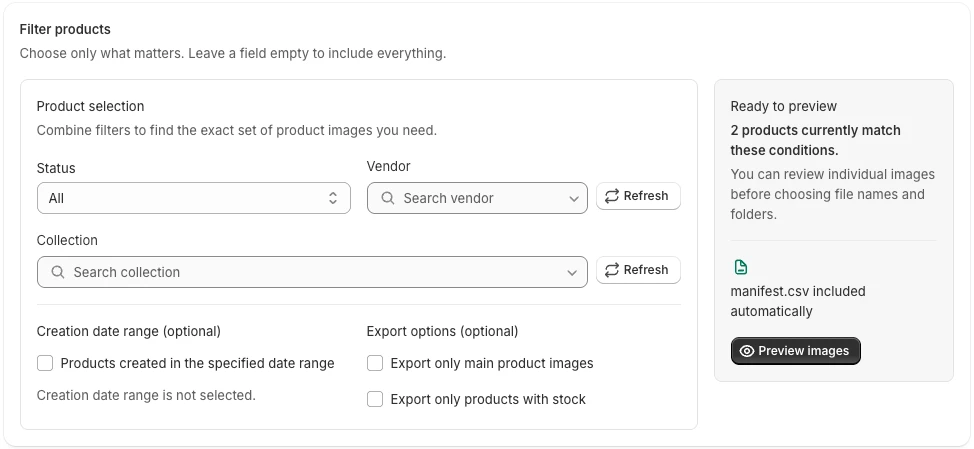
- Leave collection, vendor, status, creation-date, and inventory filters unset unless you deliberately want a subset.
- Keep the main-image-only option off when you need the full gallery.
- Preview the results. Check a draft product, an older product, and a product with several photos.
- Choose product folders for easier inspection, then pick your naming pattern.
- Confirm the selection and allowance, create the export, and download the completed ZIP.
For a large catalog, confirm the image count before starting. The Free plan includes 100 images per cycle; Premium is usage-based. Review the current terms in the app before approving a larger job.
If you prefer to start from a CSV
Shopify's product export instructions explain how to export product records from the Products page. Choose the whole catalog if that is the scope you need.
Keep the original CSV untouched. Work from a copy to collect non-empty image URLs, download the files, and record which URLs failed. Avoid treating the number of spreadsheet rows as the number of distinct images: rows can represent variants or additional images, and URLs can repeat.
This route is practical if you already have a reliable downloader and want to maintain your own mapping. The product images CSV guide explains the differences between a product export and an image manifest.
Check the archive before filing it away
For unusually large product galleries, there is an additional limit to check: the current exporter reads up to 100 media entries and 100 variants per product, with up to 20 media associations per variant. It does not paginate those nested lists. If a product exceeds those limits, do not treat this export as a complete copy without reconciling that product separately.
Extract the ZIP and open several files, including images from the beginning and end of your selection. In PlainKits, inspect download_status in manifest.csv; a completed archive can still contain individual failed downloads. Match downloaded rows to the exported files rather than assuming the ZIP's existence proves completeness. Use the manifest reading guide to check paths and failed rows.
Spot-check product galleries against Shopify. If an entire group is missing, revisit your filters and starting selection. If particular images failed, check their source URLs and retry those products.
Keep the ZIP with the export date and a short note describing its scope. For an archive you intend to rely on months later, follow the product image backup checklist.
Still choosing between CSV, manual downloads, and an app? Compare the four Shopify image export methods before committing to a catalog-wide download.
If the ZIP is missing images
| Symptom | What to check next |
|---|---|
| A whole group of products is missing | Starting selection, collection, vendor, status, and other filters |
| Only one image per product appears | Whether main-image-only was selected |
| An individual image failed | Its download_status, original URL, and the product gallery |
| An unusually large gallery is incomplete | The per-product media and variant limits described above |
| The archive link has expired | Whether a local copy exists; otherwise create a fresh export under the current terms |
Check the preview before starting and the manifest after downloading. For a first export with screenshots, use the app walkthrough. For limits and billing, read the Image Export FAQ.