Open a Shopify product CSV and you will see text, numbers, and image links. You will not find the image files embedded in the spreadsheet.
That distinction matters when somebody asks you for an “image export.” An importer may want the URLs. A designer probably wants the photos. A backup needs files that still exist if the original URLs stop working.
What a Shopify product CSV does
Shopify's native product CSV represents catalog data, including references to product images. Image-related columns describe the source URL and other image information supported by that CSV format.
For field names and import requirements, use Shopify's product CSV reference. Shopify's current documentation and your exported headers should be your source of truth, especially when using older spreadsheet templates.
A CSV can point an importer at an accessible image URL. It cannot make a local file on your computer accessible just because you put its path in a cell.
Download images referenced by a CSV
Keep an untouched copy of the export. In a working copy, identify the image URL columns and collect their non-empty values. Preserve the product identifiers beside each URL.
Download those URLs with a suitable downloader or script, recording the resulting local path and success or failure. Deduplicate downloads where appropriate, but preserve all product associations in your mapping: one downloaded file may still be used by several records.
Check a sample before running a large batch. Failed requests, repeated URLs, and conflicting filenames are all easier to handle before your download folder fills up. If you need a guided ZIP export instead, see download all Shopify product images.
How PlainKits' manifest differs
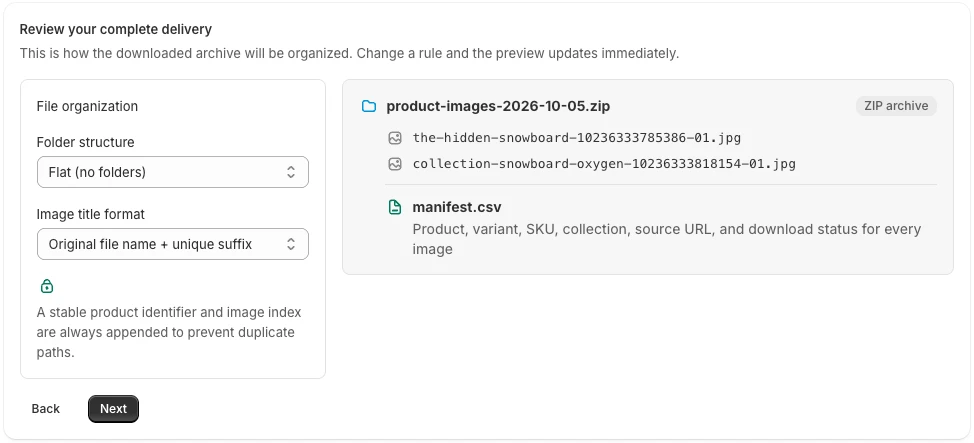
PlainKits Image Export includes a separate manifest.csv inside the image ZIP. It describes the export results rather than the full product catalog.
| Manifest field | What it helps you check |
|---|---|
product_id, handle | Which source product owns the image |
variant_id, sku | The available variant association |
media_id, media_position | The source media and recorded position |
original_url | Where the exporter fetched the image |
exported_filename | Where the image belongs in the archive |
download_status | Whether that image downloaded successfully |
Variant fields can be blank. The current manifest does not include all product details or image alt text, and it is not a Shopify product-import template.
Do not upload the manifest through Products > Import expecting it to recreate the catalog. For a migration, transform the data into the destination's documented format and supply accessible image URLs where required.
Preserve relationships when editing
Keep IDs and SKUs as text in your spreadsheet so leading zeros or long identifiers are not unintentionally changed. Work on copies when sorting, deduplicating, or joining sheets.
Product CSVs can contain several rows for one product. Avoid sorting only one column or deleting rows just because repeated product fields look redundant. Review a small product group against the original export after any transformation.
For a move to another store, follow the migration checklist. For a SKU-led handoff, read the SKU image export guide before assuming each image row will have a SKU.
If you already have a PlainKits ZIP, follow the manifest.csv reading guide to check the exported file paths and per-image download results.
Not sure whether your recipient needs URLs or actual files? The Shopify product image export comparison helps you choose before building a spreadsheet workflow.
Choose the next step
- Need URLs or catalog rows? Keep working from Shopify's product CSV.
- Need the actual image files for the whole catalog? Use the download-all checklist.
- Need to verify a PlainKits download? Read the manifest fields and failure checks.
- Need to upload a prepared ZIP? The Image Upload guide explains supported matching and why a product CSV is not automatically an upload manifest.