A marketplace team asks for SKU-named photos because its import sheet is organized by SKU. That sounds simple until you meet a shared lifestyle image, a variant without a SKU, or a photo used by several sizes.
Quick answer: can Shopify images be named by SKU?
Yes. PlainKits Image Export can use an associated variant's SKU as the readable part of an exported filename. If that SKU is missing, the name falls back to the product handle. A shared or general gallery image does not automatically receive every variant SKU, so inspect the ZIP and manifest.csv before sending files to a system that expects exact SKU matches.
Separate selection from naming
“By SKU” can mean two jobs: selecting only products on a SKU list, or naming downloaded photos using SKUs.
PlainKits supports SKU-based naming. Its current export filters do not include an arbitrary pasted SKU list. If you have a specific list, identify the corresponding products in Shopify Admin and start an export from that product selection. Check the preview against your list before proceeding.
For a collection with SKU-named output, use the collection export workflow first, then choose the naming pattern.
Create a small sample first
- Select a few representative products: one with clean variant assignments, one with shared imagery, and one with a missing SKU.
- Preview their images and confirm you selected the intended scope.
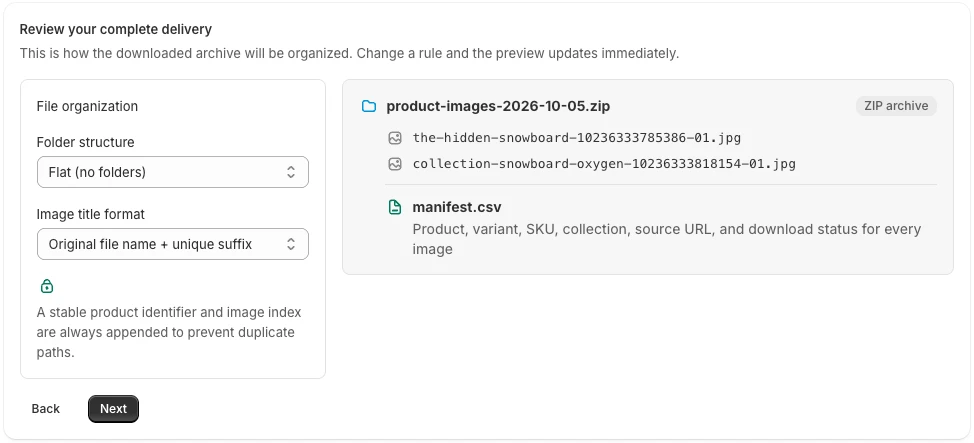
- Choose the Marketplace / POS preset, or select the SKU naming option yourself.
- Export and extract the ZIP.
- Compare the filenames and the manifest's
sku,variant_id, andexported_filenamecolumns.
PlainKits normalizes the readable part of each filename and adds a product ID and an index. An illustrative result is tee-blue-m-123456789-01.jpg, not necessarily the exact TEE-BLUE-M.jpg a destination expects. Check the destination's rules before sending the full batch.
What happens when the mapping is incomplete?
When the associated variant has no SKU, or an image has no associated variant, SKU naming falls back to the product handle. That gives the file a usable name; it does not create missing SKU data.
If several variants share an image, the current exporter records the first matching variant returned for that image. It does not duplicate that photo once for every variant SKU. A destination that expects an image row for every size may therefore need an additional mapping step.
General gallery photos can still be valuable even with a blank SKU column. Keep them in product folders, or maintain a separate product-to-SKU mapping when the receiving system needs them assigned across variants.
Prepare the final handoff
Resolve missing or duplicate SKUs in your source data where possible. Re-run the sample after changes, then export the full selection. Keep the manifest alongside any renamed files, and update your working mapping if you rename files after extraction.
Do not rely on a filename alone as the permanent identity of an image. Preserve product and variant IDs in the handoff spreadsheet. The image library guide covers version management after export; the CSV guide explains why an export manifest is not a ready-made product import file.
SKU-based naming is one part of the handoff. For the broader choice between image URLs, manual downloads, and a ZIP, see the Shopify image export methods guide.