Sending product photos to a designer sounds like a small task. Then the questions begin.
Which black-shirt image belongs to the small variant? Is image_12.jpg the current photo or the one from last season? Why are there three files called main.jpg? Was the packaging shot intentionally left out, or did it fail to download?
None of these are really design questions. They are context questions. And when context does not travel with the files, the designer has to recover it from filenames, screenshots, messages, and memory.
A good handoff does not need an elaborate digital asset management system. It needs a clear selection, a folder structure that makes sense to another person, and a small index that answers the questions filenames cannot.
The real problem is not sending the files
Google Drive, Dropbox, WeTransfer, email, and Slack can all move a folder from one person to another. The awkward part happens before upload: getting the right Shopify images out of the store and arranging them so the recipient can work confidently.
Two common shortcuts tend to create trouble.
A list of Shopify CDN links
Links are useful when a designer only needs to inspect a few images. For a larger job, they turn the handoff into a second download project. Someone must open each URL, save the file, choose a name, and remember which product it came from.
Links can also lose meaning when they are separated from the product spreadsheet or message that explained them. cdn.shopify.com/.../IMG_4821.jpg says very little about the product, variant, or intended use.
One folder of anonymous images
A flat folder can be convenient for bulk tools, but not when every file is called some variation of main, front, or DSC_0042. Duplicate names may be changed automatically by the browser or operating system, leaving files such as main (17).jpg. Those names prevent overwrites, but they do not restore context.
The painful part is that this failure often stays hidden until the designer has already started. A wrong image can make it into a campaign, or the work pauses while everyone searches Shopify again.
Decide what the designer actually needs
Before exporting anything, write one sentence that describes the job. For example:
Create square campaign graphics for every product in the Summer collection, using the main image and one detail image for each product.
That sentence settles several decisions at once:
- The scope is one collection, not the whole catalog.
- The designer needs two images per product, not every available angle.
- Product-level folders will be easier to browse than one flat folder.
- The original image files should be preserved until the designer creates edited derivatives.
If the request is vague, exporting more files does not necessarily help. It can simply move the selection work to the designer, who usually has less catalog context than the merchant.
A folder structure that survives the handoff
For most design work, product-title folders and recognizable filenames strike a good balance:
summer-campaign-source-images.zip
├── canvas-tote-bag/
│   ├── canvas-tote-front-1026333752618-01.jpg
│   └── canvas-tote-detail-1026333752618-02.jpg
├── linen-shirt/
│   ├── linen-shirt-navy-1026333811546-01.webp
│   └── linen-shirt-cuff-1026333811546-02.webp
└── manifest.csv
The product folder lets someone understand the package at a glance. The stable product identifier and image position prevent duplicate paths. The manifest carries the details that would make a filename too long.
There are exceptions. A designer importing hundreds of images into an automated layout tool may prefer one flat folder with SKU-based filenames. Ask before sending. A thirty-second question about folder structure is cheaper than rebuilding the package after upload.
If SKU is the primary key in the designer's spreadsheet, see downloading images with SKU-based names for the tradeoffs and fallback rules. For ongoing version control after delivery, see organizing an exported image library.
What to put in the manifest
A manifest is not paperwork for its own sake. It is the quiet reference file that keeps a handoff moving when a filename is not enough.
At minimum, it should connect each exported file to:
- Product title and Shopify product ID
- Product handle
- Variant title and SKU, when available
- Collection
- Image position
- Original source URL
- Exported filename
- Download status
PlainKits includes these fields, but its manifest does not include alt text. If your designer needs image descriptions, provide them in the brief or a separate data export.
For a field-by-field explanation and a quick file check, see how to read the image export manifest.
An illustrative excerpt using the manifest's column names:
| product_title | variant_title | sku | media_position | exported_filename | download_status |
|---|---|---|---|---|---|
| Canvas Tote Bag | Black | CTB-BLK | 1 | canvas-tote-bag/canvas-tote-front-1026333752618-01.jpg | downloaded |
| Canvas Tote Bag | Black | CTB-BLK | 2 | canvas-tote-bag/canvas-tote-detail-1026333752618-02.jpg | downloaded |
| Linen Shirt | Navy / M | LS-NAVY-M | 1 | linen-shirt/linen-shirt-navy-1026333811546-01.webp | downloaded |
If a file fails, keep the row and mark the status instead of silently dropping it. “Three files failed” gives the team something concrete to resolve. A mysteriously incomplete folder does not.

How to prepare the package with PlainKits
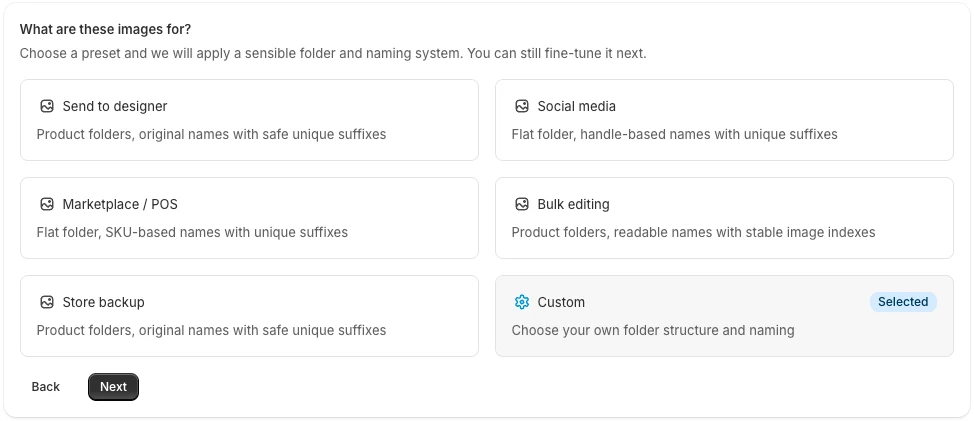
PlainKits Image Export has a Send to designer preset. It starts with product-title folders and original filenames, then adds safe, stable suffixes to avoid collisions.
The workflow is deliberately reviewable:
- Start from selected products, a product page, a collection, or filters inside the app.
- Preview the actual images before export.
- Remove files that do not belong in this design brief.
- Choose Send to designer, or adjust the folder and naming rules.
- Create the export and download the ZIP with
manifest.csv.

PlainKits exports the product images stored in Shopify. It does not retouch, crop, resize, convert, or color-correct them. That boundary matters: the ZIP is the source handoff, not a claim that the files are already ready for print, advertising, or a particular marketplace.
For the full export walkthrough and a comparison with manual downloads, read How to export Shopify product images in bulk.
Include a short written brief
Even the cleanest ZIP cannot explain the creative decision. Put a short README in the shared folder or include the same information in your project message:
- What is being made and where it will appear
- Required dimensions or aspect ratios
- Which images are preferred as hero images
- Whether copy, logos, and brand fonts are included elsewhere
- Which products or variants are intentionally excluded
- Whether the designer may crop or alter the source files
- Where finished work should be uploaded
- Who approves the final assets and when feedback is due
Keep this brief separate from the manifest. The manifest describes what each file is; the brief describes what the team is trying to make.
Designer handoff checklist
Before you send the link, open the package as if you were the recipient.
- The folder name identifies the project or campaign.
- Only the products in the agreed scope are included.
- The chosen image angles match the brief.
- Product folders and filenames are understandable without Shopify access.
- Duplicate paths have a stable suffix instead of an arbitrary
(1). -
manifest.csvopens correctly and matches a few spot-checked files. - Any failed image downloads are visible in the manifest.
- The brief states dimensions, output format, deadline, and approver.
- The designer knows these are source images, not pre-edited final assets.
- A merchant-side copy is kept until the project is complete.
The best handoff is not the one with the most files. It is the one that lets another person begin without opening a chat window to ask what everything means.