A request to “download all the Shopify files” can mean product photos, a size-chart PDF, campaign banners, or a copy of the theme. Those assets do not all belong to the same export workflow.
Start by identifying the files you actually need. It saves a lot of frustration when the first download turns out to contain only one part of the store.
Download individual assets from Content > Files
Open Content > Files in Shopify Admin and locate the asset by its name or available filters. Open its details and use the available download control. Depending on the file and interface, you may instead copy its link and save the file from that URL in your browser.
Check the saved result before continuing: it should be the file itself, not an HTML preview page. Keep a note of the original URL if another document or team member refers to it.
Shopify's file management documentation covers the Files area and managing uploaded assets. Follow the controls shown in your current admin rather than expecting every file type to offer an identical preview.
Use a product-aware workflow for product photography
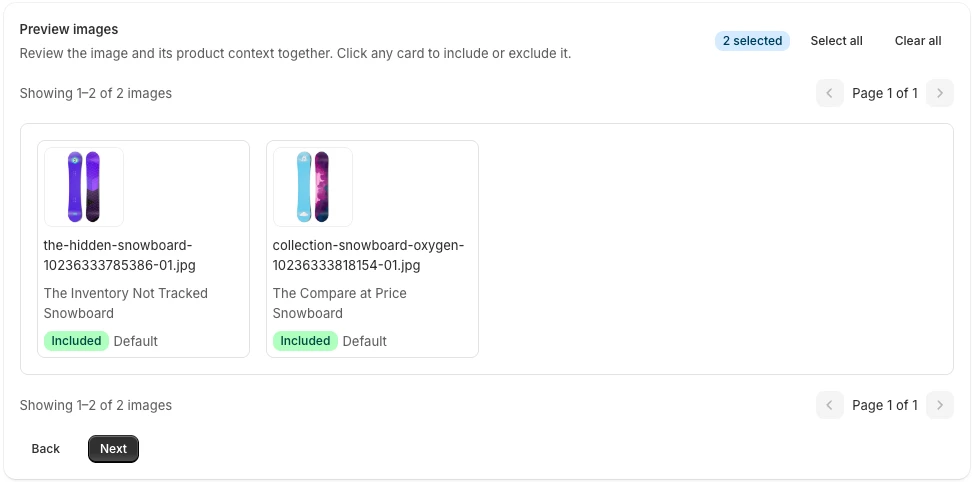
If the task is specifically to download product galleries, an image exporter can preserve context that a general file download does not provide: which product the photo belongs to, its available variant association, and the exported filename.
PlainKits Image Export exports product images and supports a separate collection-cover scope. It is not a general downloader for everything in Content > Files. It does not package uploaded PDFs, videos, theme code, or every unattached image in the Files library.
For actual product photos, follow how to download all product images. For a mixed library, keep a separate checklist for the other asset types.
A theme download is another separate archive
Downloading a theme gives you the theme files. Shopify states that a theme download does not include products, collections, pages, blog posts, or files from Content > Files. See Shopify's theme download instructions.
If you are handing a store to a developer, ask which parts they need. A theme ZIP and a product-image ZIP solve different parts of that handoff; neither is a complete store export.
Plan a larger Files-library download carefully
For a large collection of PDFs, videos, and unattached assets, use a tool whose scope explicitly includes Shopify Files, or arrange a supported API-based export with a developer. Confirm the file types, access requirements, and whether the tool downloads the actual files or only a list of URLs.
Start with a sample containing each type of asset. Check file sizes, open the downloads, and keep a source-to-local-file index. A list of links is helpful for inventory, but it is not an offline copy.
When the purpose is preservation, store the downloads somewhere you control and retain the index. The product image backup guide provides a verification routine for the product-photo portion of that work.
For product photography rather than general store files, the product image export guide compares CSV, manual downloads, and app-based exports.