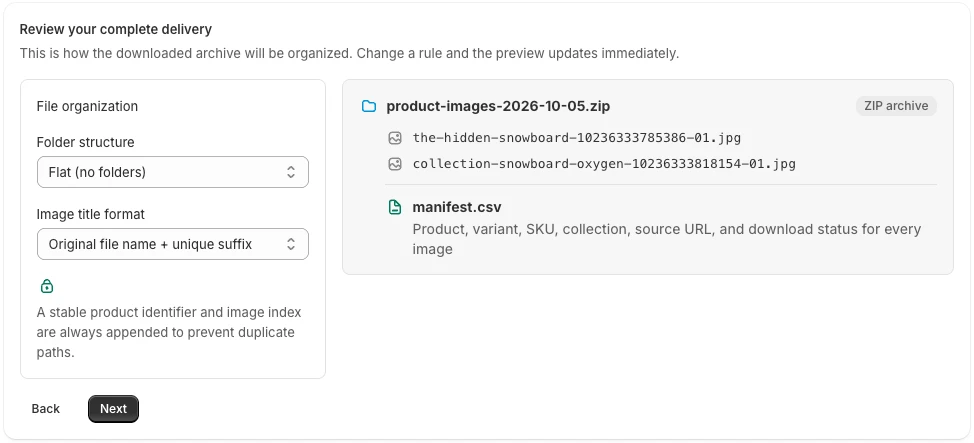
Before preparing the destination import, choose how you will retrieve the source files. The Shopify product image export guide explains when a CSV is enough and when you need an image archive. Moving photos is easy to underestimate. The files arrive, but the wrong color becomes the main image, a gallery loses its order, or an import expects URLs where you supplied local filenames.
Treat the image transfer as a small migration project of its own. You need the assets, their relationships to products, and a destination that knows how to read both.
Ask what the destination accepts
Before exporting, check whether the destination expects uploaded files, publicly reachable image URLs, or a specific CSV structure. Also check its supported formats, filename rules, gallery-order fields, and variant-image behavior.
A ZIP is convenient for moving files between people. It is not automatically an import format. Likewise, PlainKits' manifest is a reference for your migration mapping, not an importer for Shopify or another platform.
Export the source files and records
Use PlainKits Image Export to download the required product photos. Include full galleries unless you deliberately want only primary images. Export the product records separately so you retain information that is outside the image manifest.
Product folders make manual checks easier. SKU-based names can help a destination workflow, but first read the SKU export caveats: shared imagery and missing variant assignments need attention.
Keep an untouched copy of both exports. Build the destination mapping from working copies.
Build a mapping you can audit
For each successful image download, record the source product identifier, the local file path, the destination product identifier, and the destination image location. Add the intended gallery position and variant relationship where the target system supports them.
PlainKits' product_id, media_id, media_position, is_featured, original_url, and exported_filename fields help with that work. The available variant fields describe the association captured by the exporter; they are not a full many-to-many variant mapping.
If the destination needs image URLs, upload the files to an appropriate location and use the resulting accessible URLs. A local path such as photos/shirt.jpg is not a URL an external importer can fetch.
Test awkward products first
Run a trial with a simple product, a product with many gallery images, and a product whose variants use different photos. Include a missing-SKU example if your catalog has one.
Check the resulting product pages for the right main image, gallery order, correct variant photos, and readable images. Compare the output against the source while both are available. A successful CSV import message does not prove the visual result is correct.
Retire the source only after checking the destination
For a Shopify-to-Shopify transfer that imports image URLs, Shopify advises keeping the source store and product listings accessible while the new store imports them. See its product export guidance.
Do not delete source imagery just because the product records have arrived. Verify the destination has fetched what it needs, keep the local image archive, and document unresolved failures.
The product images CSV guide explains the two CSVs you may be working with. For long-term retention after the move, use the image backup checklist.